Surveys and Surveyors: Your Eyes in the Field
Not every property visit ends with a work order. Sometimes you just need a trained set of eyes to go look at things, document what they find, and bring that information back before anyone decides what to fix, replace, or leave alone. That is exactly what the survey system is built for.
Think of a survey as a property status report for the fixtures in a particular trade. An admin creates the survey, a surveyor receives an email notification and heads out to the property, and their findings come back as a structured, photographed, documented record through the Surveyor Portal. Surveyors occupy their own distinct role in Sytewise, separate from vendors, with their own portal, their own permissions, and their own workflow. They are not there to fix anything. They are there to tell you what needs fixing.
What a Surveyor Is and Isn't
A surveyor in Sytewise is not a vendor. They don't receive work orders, they don't invoice for completed jobs, and they don't track costs. A surveyor is an observer and auditor. They go to a property, walk through the fixtures and systems in scope, document the condition of what they find, and submit a report that the admin team uses to make decisions.
That distinction matters because it changes how you use them. Vendors execute work. Surveyors assess it. Both are essential, and in many workflows they work in sequence: the surveyor goes first to determine what's actually happening out in the field, the admin reviews the findings and creates a work order for whatever needs to be done, and the vendor does the work. The surveyor's report becomes the factual basis for the scope of work rather than an assumption made from the office.
Surveyors can be third-party inspection companies, internal facilities staff assigned to walk properties, AV technicians auditing an installed system before a service contract is signed, or any other person or organization whose job is to observe and report rather than repair and bill.
Setting Up a Surveyor
Surveyors are managed from the Surveyors page in the left navigation bar of the Admin Portal. Each surveyor record is a company-level entry with a login account attached to it for accessing the survey portal.
Creating a Surveyor
To Create a Surveyor
- Go to Surveyors
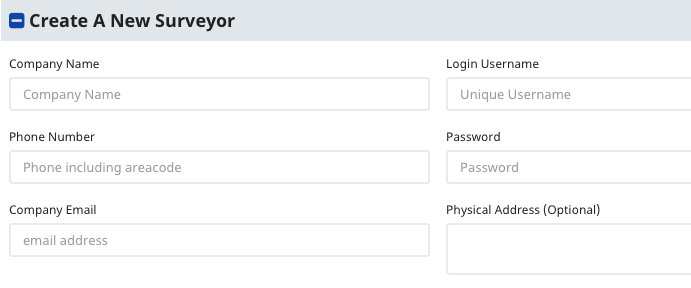
- Open the “Create A New Surveyor” section.
- Fill out every field in the form unless labeled optional
- The login password must be at least 5 characters and unique to the Sytewise system for all surveyors and vendors. If you enter a username that is already taken you will be asked to enter another.
- Make sure to write down the password you enter. Passwords are not retrievable but they are resettable.
If you're adding a large number of surveyors at once, the Import Surveyors section on the Surveyors page accepts a CSV file. Required columns are company name, email, phone, username, and password. Address and description are optional. A sample file is available to download directly from the import section to show the expected format.
Surveyor Permissions
This is where surveyors get interesting. Two permission flags control what a surveyor can do beyond the baseline of completing assigned surveys.
Can Edit allows the surveyor to modify fixture and part details while completing a survey. When this is enabled, the surveyor isn't just observing and noting problems — they can update the actual fixture and part records in the system as they go. This is the right flag for a trusted technician who is simultaneously auditing a system and correcting the data to match what's actually installed. An AV integrator doing a commissioning walkthrough, for example, might need to update firmware versions, correct model numbers, or adjust part status as they verify each component. Can Edit makes that possible without requiring admin access.
Can Create allows the surveyor to initiate surveys themselves instead of waiting for an admin to assign one. When this flag is enabled, the surveyor logs into their portal and can start a new survey for any property and trade they're associated with. This is the right flag for surveyors who operate with a high degree of autonomy, doing regular rounds without needing an admin to kick off each visit. The survey they create is flagged in the system as surveyor-created, so the admin team knows it originated in the field rather than from the office.
Both flags are off by default. Turn them on intentionally, based on the level of trust and responsibility you're extending to that surveyor.
A Flag option on the surveyor record adds a red indicator for administrative attention. Use it however makes sense for your workflow: to mark a surveyor whose insurance is pending, one whose work quality needs a second look, or simply to surface a record that needs follow-up.
Adding a Surveyor Contact
Each surveyor can company can have several contacts, each with their own login id for the Survey Portal. Add contact details to the Surveyor Company Profile. You can also add Log In IDs on the Surveyor Company profile page.
Creating a Survey
Surveys are created from the property detail page. Navigate to the property, find the trade you want to survey, and click New Survey. The creation form is straightforward.
Due Date is required and must be a future date. This is the deadline by which the surveyor needs to complete and submit their findings.
Surveyor is selected via an autocomplete search. Type part of the surveyor's company name and select from the results. Only active surveyors appear.
Special Instructions is an optional text field for anything the surveyor needs to know before arriving: access codes, contacts to call on-site, specific systems to prioritize, areas that are off-limits, or the particular questions you need answered. Whatever context helps the surveyor do their job well belongs here.
The property and trade are set by where you initiated the survey from and aren't selected in the form itself.
After creation you land on the survey detail page. The survey exists but no email has been sent yet. Take a moment to review the details, then click Send Survey when you're ready to notify the surveyor.
The Survey Email and Surveyor Portal
When you click Send Survey, Sytewise sends an email to the surveyor's address on file. The email includes the survey ID, the property name and address, the due date, any special instructions you added, and a login button linking directly to the survey portal.
The surveyor portal lives at a separate URL from the admin system. The surveyor logs in with the username and password set up on their record and sees a dashboard of surveys assigned to them, organized by completion status.
When a surveyor opens an assigned survey and begins working on it, the survey is marked In Progress. This matters because Sytewise prevents two surveyors from simultaneously working on surveys for the same property and trade combination. If a survey is in progress, any other surveys for that property/trade show an alert to the admin that the property is currently being worked. The surveyor can release the in-progress lock if they need to step away and return later, and an admin can see the in-progress status from the survey detail page.
What a Surveyor Does During a Survey
The survey submission process is where the field work becomes structured data.
The surveyor works through the fixtures at the property, selecting each one from the fixture inventory. For each fixture, they select the specific part they're documenting and record what they found.
For each part they can record:
Status: On (working) or Off (not working). This directly updates the part's status in Sytewise and feeds into the fixture's overall health score.
Notes: Free-text observations about that part's condition. These notes are stored with a source of "survey" so they're clearly distinguished from admin-entered notes, and they appear in the fixture's note history permanently.
Images: Photos uploaded directly from the surveyor's device, attached to the fixture record. Images are stored in Cloudinary and appear in the survey results, the fixture detail page, and the fixture print report. A photo of a burned-out component, a cracked housing, a missing part, or an improperly installed fixture is worth considerably more than a note that tries to describe it.
If the surveyor has Can Edit permission, they can also update fixture and part details during the survey: correcting descriptions, adjusting model numbers, or updating any field that should reflect what's actually present at the location rather than what was originally entered in the system.
A surveyor can document as many fixtures and parts as needed within a single survey. When they're done, they submit the survey and it's marked complete. Submitted surveys are read-only from the surveyor's side.
When a Surveyor Creates Their Own Survey
If the surveyor has Can Create permission, they can initiate surveys from the portal without waiting for an admin assignment. They select the property and trade, set a due date, add any notes relevant to what they're going to look at, and begin. Surveys created this way are marked in the admin system with a note indicating they were created by the surveyor rather than assigned from the admin side, so you always know the origin.
Reading Survey Results
A completed survey tells you a lot. The survey detail page organizes the findings into clear sections.
Submitted Fixtures shows every fixture the surveyor documented, with each part they reported on listed underneath it. Each part row shows the status badge (On or Off), the part number, position, and description, the notes the surveyor entered, and any images uploaded.
Fixture Updates captures any fixture-level notes added during the survey, with timestamps and the surveyor's name attached.
Part Updates shows any part-level changes made during the survey, relevant when the surveyor has Can Edit permission and updated records while they worked.
Email Log at the bottom shows the delivery record for every email sent in connection with this survey, including success or failure status. If a surveyor claims they never received the notification, this is where you verify.
The survey print view generates a clean, professional document with all of this information formatted for sharing or archiving. It includes the property and surveyor header, due and completion dates, all findings with images, and the complete email log.
Surveys in the Work Order Chain
Surveys and work orders aren't the same thing, but they work together in a chain that produces better outcomes than either one alone.
The survey is the assessment. It answers the question: what is actually going on out there? A surveyor walking through a portfolio of properties and documenting which fixtures have parts marked Off, which systems have components missing or degraded, and which locations have conditions that need attention gives the admin team a factual inventory of what needs to be done.
The work order is the authorization. Once the survey results are in and reviewed, the admin team knows exactly what to scope. The work order references the trade, the vendor, and the specific fixtures that need attention. The surveyor's notes and photos inform the instructions. The vendor arrives knowing what they're walking into because the assessment came first.
This sequence is particularly valuable for large portfolios where assumptions about property conditions tend to be optimistic, for new client onboarding where you're documenting starting conditions before any maintenance work begins, and for post-service verification where a second surveyor visit confirms that the work was actually done and done correctly.
Survey results do not automatically create work orders. That decision belongs to the admin team, who reviews the findings and determines which issues warrant vendor dispatch. That review step is intentional. Not every Off part on a surveyor's report needs a work order immediately. Some are known issues already in the queue. Some are cosmetic. Some need more information before a scope can be written. The human review between survey result and work order creation is where that judgment lives.
Recurring Surveys as Part of an Annual Workflow
Surveys are most powerful when they're scheduled, not reactive. A quarterly survey of a property's HVAC fixtures, an annual audit of an AV system before a contract renewal, a monthly walkthrough of high-traffic common areas, these are the recurring assessments that build a real operational record over time.
The Reminders system handles this. Create a reminder attached to a survey with Replicate this Survey checked, set the recurrence to whatever frequency makes sense for that property and trade, and Sytewise will prompt you to create a new survey on schedule. Each new survey gets the same surveyor, the same instructions, and the same scope as the original. You confirm, send it, and the workflow continues without anyone having to remember to set it up.
Over time, the pattern of survey results across recurring visits becomes a genuine maintenance history. Which fixtures reliably pass every survey. Which ones consistently show parts going Off between visits. Which properties have improving conditions and which ones are trending the other direction. That history is the basis for smarter maintenance decisions, better vendor conversations, and more honest conversations with clients about what it actually takes to keep their systems running.
Additional Reading: BUILDING AND ANNUAL WORKFLOW, CREATING AND MANAGING WORK ORDERS