Creating a Vendor
Vendors are the people who work on your properties — outside contractors, service companies, or even employees whose work you want to schedule and document. Before you can create a property or issue a work order, at least one vendor must exist in the system.
To create a new vendor:
- Go to Vendors in the left navigation menu and select Vendors.
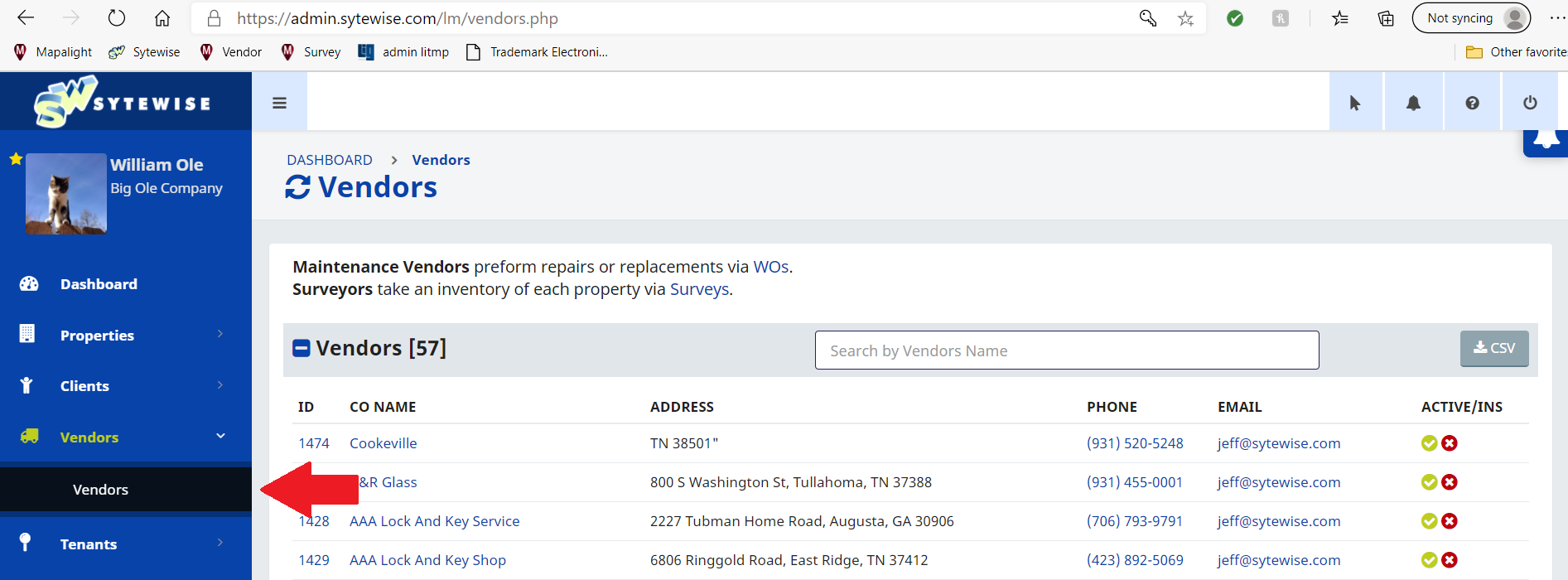
- Expand the Create A New Vendor section at the top of the page.
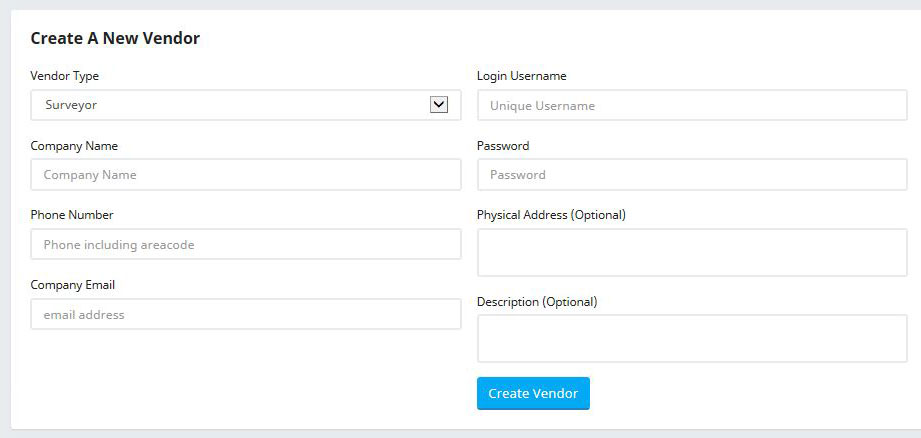
- Fill in the required fields:
- Company Name — must be unique in your account
- Phone Number — primary contact number
- Company Email — the main inbox for this vendor
- Login Username — the vendor's credential for the Vendor Portal
- Password — minimum 8 characters, one capital letter, and one number
- Address — the vendor's physical business address
- Click Lookup Geolocation to validate the address. The Create Vendor button will not appear until this step is completed.
- Click Create Vendor.
Once the vendor is created, you can add contacts, attach insurance certificates, and assign the vendor as the default for specific property trades.
Adding an Insurance Certificate (COI)
Most accounts keep a Certificate of Insurance on file for every vendor. To add one:
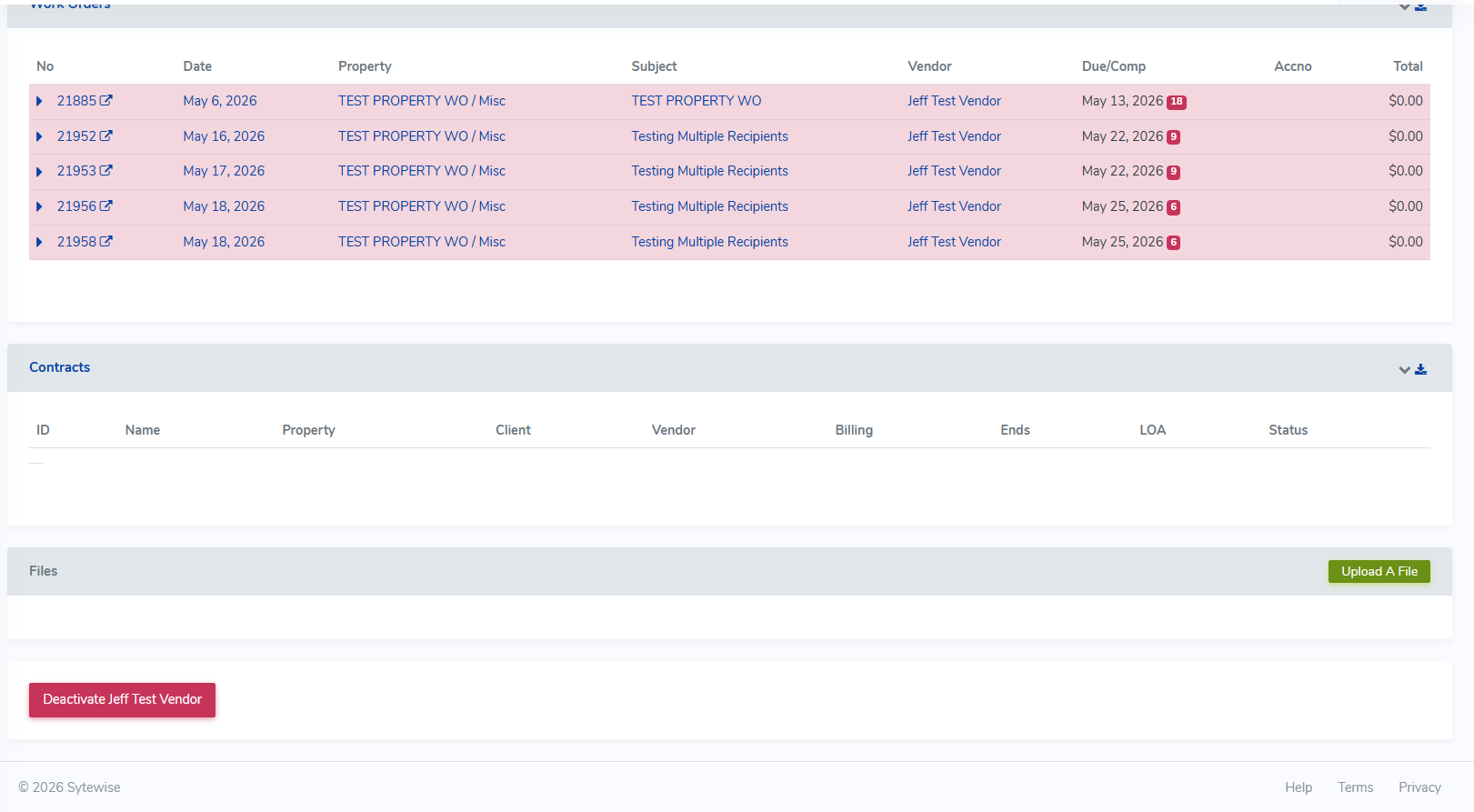
- On the vendor's profile page, scroll to the files section and click Add a File or Policy.
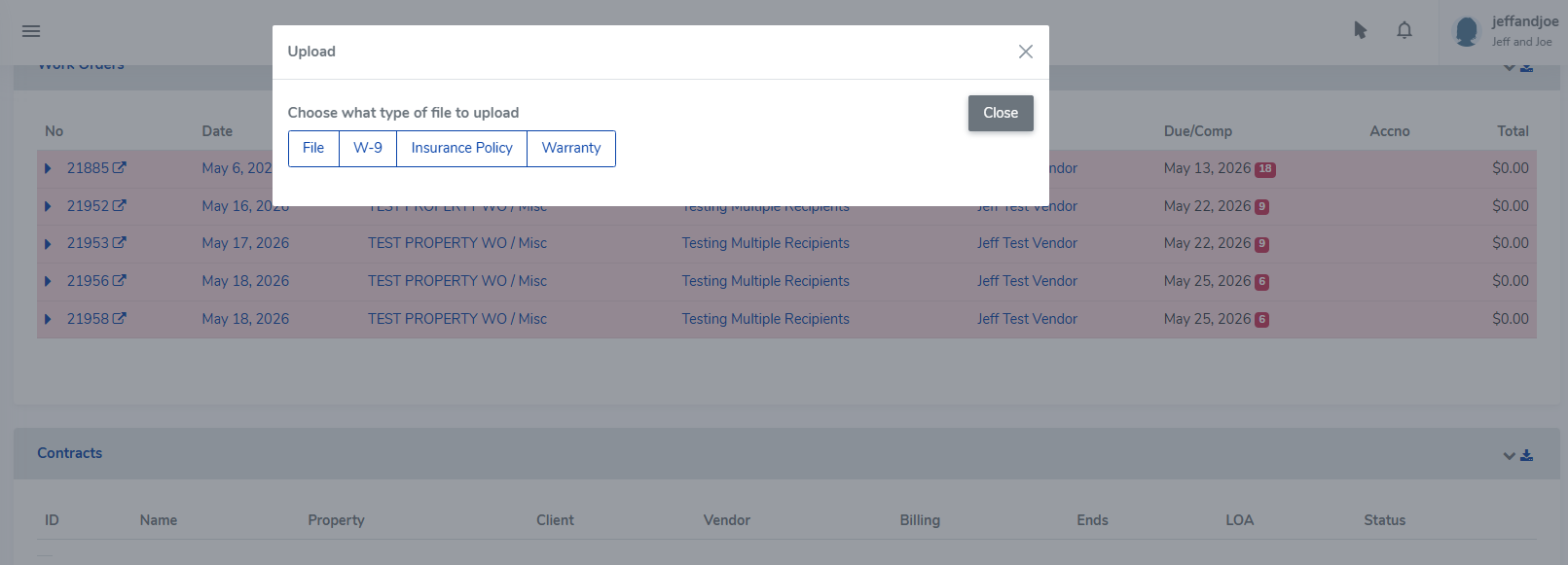
- Select the Insurance Policy tab.
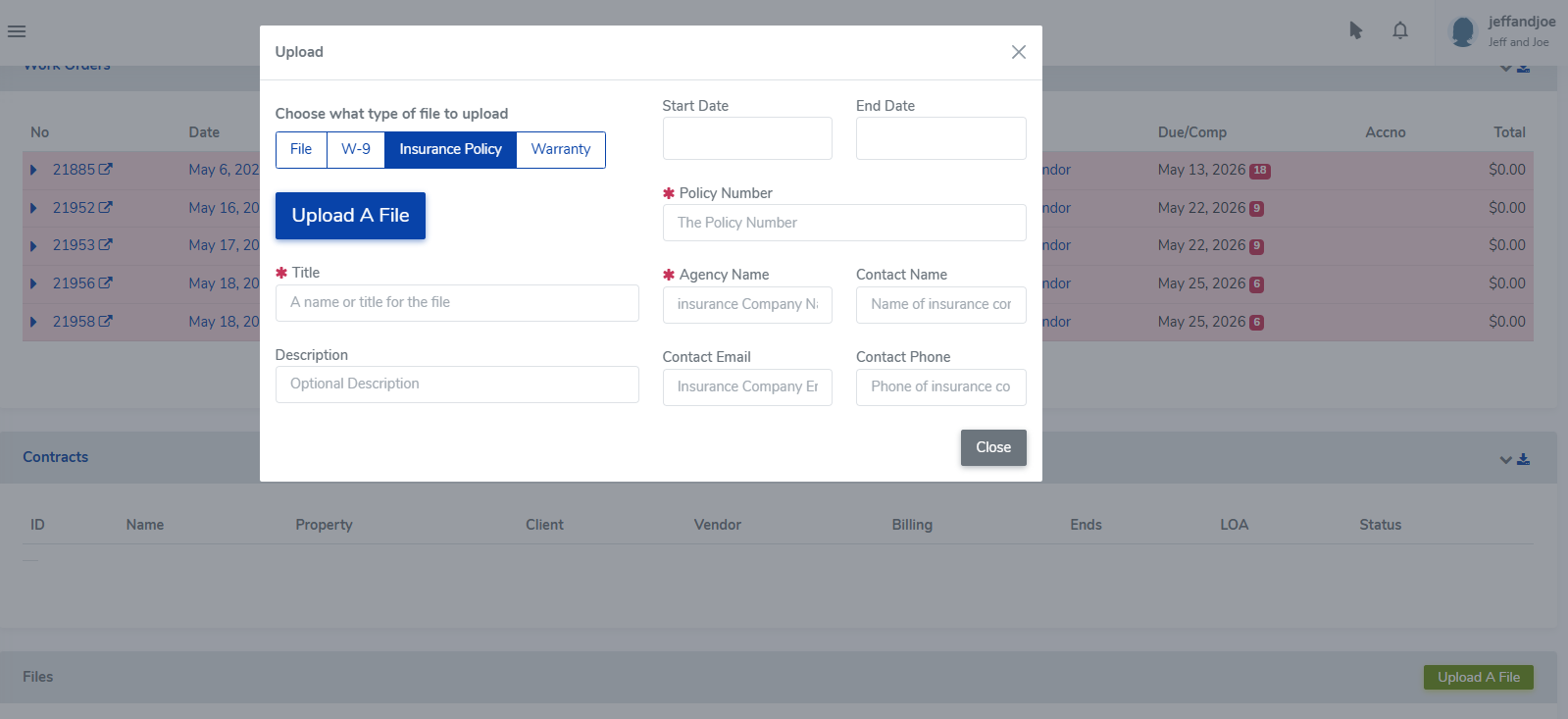
- Enter the policy details (carrier, policy number, effective and expiration dates) and click Save.
- Once the record is saved, a Choose File button appears. Select your COI document and click Save.
Your policy information will be listed with a link to the uploaded file. To edit or delete a policy or document, click the pencil icon next to the file link.
Vendors can add insurance and location information to their profiles from the vendor portal! Add instructions on how to do this in your invitational email and vendors are more likely to make those entries on their own. Vendors can have multiple COI's in their profile to confirm certificates on multiple properties.
For a complete guide to organizing vendors, assigning them to property trades, setting default vendors, and managing contacts, see Setting Up Vendors in Sytewise →